Choosing a digital pen display for animation and illustration is easier when you know what actually affects drawing comfort, color accuracy, and workflow speed. The right screen can make sketching, inking, and frame-by-frame work feel far more natural.
Below, we’ve focused on displays that balance pen response, panel quality, and creator-friendly features so you can find a setup that fits your art style and desk space.
Best 10 Digital Pen Display for Animation and Illustration Picks for 2026
Pro Workflow Pick
XPPen Artist 15.6 Pro 15.6" Full-Laminated Pen Display

- 15.6-inch full-HD laminated screen
- 8192-pressure pen with battery-free stylus
- 8 shortcut keys plus programmable red dial
Best For: artists who want a roomy, computer-connected display with shortcut controls and a color-rich screen
Studio Classic
Wacom Cintiq 22 Large Creative Pen Display

- Large Full HD workspace for drawing
- Pro Pen 2 with tilt and 8192 pressure levels
- Anti-glare glass and relaxed parallax
Best For: artists, students, and hobbyists who want a spacious Wacom display with premium pen control
Compact Starter Display
XP-PEN Artist12 11.6" FHD Drawing Monitor

- 11.6-inch Full HD IPS display
- Battery-free stylus with eraser end
- 6 shortcut keys plus programmable touch bar
Best For: beginners, students, and home users who want a compact screen tablet with core creative features
Color-Accurate Portable Pick
HUION Kamvas 13 Gen 3 13.3" Pen Display
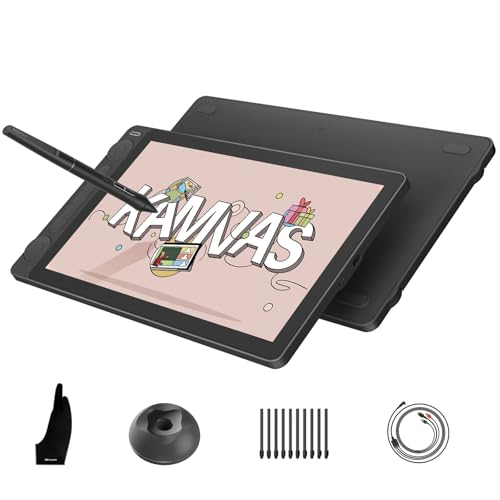
- 13.3-inch laminated screen with anti-sparkle glass
- 16K pressure pen with PenTech 4.0
- 2 dials, 5 silent keys, and factory color calibration
Best For: creators who want a portable, color-accurate display with advanced pen control
Large-Format Color Accuracy
XPPen Artist 22 2nd 21.5" Pen Display

- 21.5-inch IPS screen with 1920x1080 resolution
- 122% sRGB plus 90% Adobe RGB color coverage
- Battery-free stylus with 8,192 pressure levels
Best For: Artists needing a large, color-accurate display for illustration and animation
Premium 4K Touch Workflow
XPPen Artist Ultra 16 4K OLED Touchscreen

- 15.6-inch 4K OLED panel with <1 ms response time
- 99% Adobe RGB, 99% sRGB, and 98% Display P3
- Includes dual 16K pressure styluses and shortcut remote
Best For: Professional illustrators and editors who want compact 4K OLED touch control
Budget-Friendly Starter Display
GAOMON PD1161 11.6" Pen Display

- 11.6-inch full HD IPS screen with matte film
- Battery-free stylus with 8,192 pressure levels
- 8 shortcut keys and 2 programmable pen buttons
Best For: Beginners and students who want a compact, affordable pen display
Compact color-accurate pick

- 16,384 pressure levels with faster response
- Full-laminated 13.3-inch screen with AG film
- 125% sRGB plus shortcut dial and 8 keys
Best For: new illustrators and animators who want an easy, color-accurate display
Portable pro bundle
Xencelabs Pen Display 16 Bundle

- 4K OLED screen with 1.07 billion colors
- Includes two battery-free pens and Quick Keys
- Thin 12mm body with carrying case included
Best For: advanced artists who want a portable, studio-level display
Sharp QHD drawing pick
DIGIDRAW Turing 14 2.5K Display

- 2.5K 2560x1600 panel with ΔE<1.5 calibration
- 16,384 pressure levels with 60° tilt
- Built-in 19° stand and wrist rest
Best For: illustrators and designers who want crisp detail and comfortable long sessions
Pro Workflow Pick – XPPen Artist 15.6 Pro 15.6" Full-Laminated Pen Display
If you want a digital pen display for animation and illustration that balances size, color, and workflow controls, the XPPen Artist 15.6 Pro is a strong mid-size option. It connects to a computer, so it’s built for a desktop or laptop setup rather than standalone sketching, and its full HD laminated screen helps keep the drawing surface feeling direct and easy to read.
Best For: Artists who want a roomy, computer-connected display with shortcut controls and a color-rich screen.
Pros:
- 15.6-inch full-HD, full-laminated display for a clearer drawing view
- 8192 levels of pressure sensitivity with the PA2 battery-free stylus
- 8 customizable express keys plus a programmable red dial for faster workflow
- 88% NTSC / 120% sRGB color coverage and wide viewing angles
Cons:
- Must be connected to a computer or laptop to work
- Not a standalone tablet
This is a practical choice if you value on-screen drawing with extra controls for zooming, scrolling, and shortcut-heavy creative work. It’s especially appealing for artists who want a larger display than entry-level models without moving up to a much bigger workspace.
Studio Classic – Wacom Cintiq 22 Large Creative Pen Display
The Wacom Cintiq 22 is a full-size digital pen display for animation and illustration aimed at creators who want a larger drawing area and Wacom’s Pro Pen 2 experience. With a Full HD LCD, relaxed parallax, and included stand accessories, it’s designed to feel natural for long drawing sessions in the studio, classroom, or home setup.
Best For: Artists, students, and hobbyists who want a spacious Wacom display with premium pen control.
Pros:
- Large creative workspace with 1920×1080 Full HD display
- Pro Pen 2 offers 8192 pressure levels, tilt recognition, and near lag-free tracking
- Relaxed parallax and anti-glare glass support more natural drawing
- Includes pen, replacement nibs, cable, adapter, and quick start guide
Cons:
- Requires a connected Windows or macOS computer
- Bulkier than compact pen displays
If you want a larger screen and a familiar pen feel for detailed illustration or animation work, this model fits that use case well. It’s a straightforward choice for creators who prioritize pen accuracy and a spacious canvas over portability.
Compact Starter Display – XP-PEN Artist12 11.6" FHD Drawing Monitor
The XP-PEN Artist12 is a compact digital pen display for animation and illustration when you want a smaller, desk-friendly screen connected to a computer. Its 11.6-inch full HD IPS panel, customizable controls, and battery-free stylus make it a practical entry point for drawing, sketching, and photo editing.
Best For: Beginners, students, and home users who want a compact screen tablet with core creative features.
Pros:
- 11.6-inch 1920×1080 IPS display with 72% NTSC / 100% sRGB color gamut
- Battery-free stylus with an eraser end and comfortable hexagonal grip
- 6 customizable shortcut keys plus a programmable touch bar
- Works with Windows, Mac, and Linux for drawing, animation, and more
Cons:
- Must connect to a computer to operate
- Smaller screen may feel tight for complex layouts
This model makes sense if you want the on-screen drawing experience without committing to a larger, more expensive display. It’s especially useful for beginners or students who need a reliable, compact setup for classwork and creative practice.
Color-Accurate Portable Pick – HUION Kamvas 13 Gen 3 13.3" Pen Display
The HUION Kamvas 13 (Gen 3) is a portable digital pen display for animation and illustration that focuses on color accuracy, pen precision, and a cleaner drawing surface. It needs a computer or compatible device to work, but its laminated anti-sparkle glass and dual dials make it a strong fit for artists who want a refined on-screen drawing experience in a lighter package.
Best For: Creators who want a portable, color-accurate display with advanced pen control.
Pros:
- 13.3-inch full-laminated display with anti-glare Canvas Glass 2.0
- 16K pressure pen with PenTech 4.0, tilt auto-alignment, and 3 side buttons
- 99% sRGB / Rec.709 and 90% Adobe RGB coverage with factory calibration
- 2 dial controllers and 5 silent press keys for efficient workflow control
Cons:
- Not a standalone product
- Requires a compatible computer or supported device for use
This is a compelling option if color fidelity and a smooth drawing surface matter as much as pen response. Its slimmer, lighter build also makes it easier to move between workspaces without giving up pro-style controls.
Large-Format Color Accuracy – XPPen Artist 22 2nd 21.5" Pen Display
If you want a digital pen display for animation and illustration with plenty of room to sketch, the XPPen Artist 22 2nd gives you a 21.5-inch full HD workspace with strong color coverage. Its 122% sRGB and IPS panel make it a practical pick for artists who want dependable screen visibility, low lag, and a comfortable desktop setup for drawing, editing, and sharing work.
Best For: Artists who want a large, color-rich pen display for illustration, animation, and general creative work.
Pros:
- 21.5-inch IPS display with 1920×1080 resolution and 178° viewing angle
- Wide color support including 122% sRGB, 90% Adobe RGB, and 86% NTSC
- Fast 14 ms report rate and 8 ms pen response time for smoother strokes
- Battery-free stylus with 8,192 pressure levels, tilt support, and two shortcut buttons
Cons:
- Requires a connected computer rather than working as a standalone tablet
- Larger size may be less ideal for compact desks or travel
- Display setup may be more than a beginner needs if portability is the priority
Overall, this is a strong all-around pen display if your workflow benefits from a bigger canvas and solid color performance. It balances responsiveness, compatibility, and ergonomic adjustability well for long creative sessions.
Premium 4K Touch Workflow – XPPen Artist Ultra 16 4K OLED Touchscreen
The XPPen Artist Ultra 16 is a premium digital pen display for animation and illustration if you want high-end color, touch control, and a compact 15.6-inch footprint. Its 4K OLED panel, 99% Adobe RGB coverage, and dual styluses make it a compelling choice for creators who care about image quality, precision, and an efficient shortcut-heavy workflow.
Best For: Professional artists and editors who want a compact 4K OLED pen display with touch support.
Pros:
- 15.6-inch 4K OLED screen with 3840 x 2160 resolution and <1 ms response time
- Calman-verified color with 99% Adobe RGB, 99% sRGB, and 98% Display P3 coverage
- X-Touch multi-point gestures for canvas zooming, rotating, and navigation
- Includes dual 16K pressure styluses and an ACK05 shortcut remote with 40 programmable keys
Cons:
- Must be connected to a computer or laptop to use
- Premium feature set may be more than casual users need
- Smaller 15.6-inch display may feel tight compared with larger pen displays
For creators who value display quality and touch-based efficiency, this model stands out as a polished workstation tool. It is especially appealing when accurate color, sharp detail, and flexible controls matter more than screen size.
Budget-Friendly Starter Display – GAOMON PD1161 11.6" Pen Display
The GAOMON PD1161 is a practical digital pen display for animation and illustration if you want a smaller, easier-to-handle screen for drawing, editing, and note-taking. With an 11.6-inch IPS display, matte film for reduced glare, and a battery-free stylus, it covers the essentials for beginners and students who need a connected pen display for everyday creative work.
Best For: Beginners, students, and budget-conscious creators who want a compact pen display for drawing and design.
Pros:
- 11.6-inch full HD IPS screen with matte film to reduce glare and reflections
- 72% NTSC / 100% sRGB color gamut with 16.7 million display colors
- Battery-free stylus with 8,192 pressure levels and tilt support
- 8 shortcut keys plus 2 programmable pen buttons for workflow control
Cons:
- Must be connected to a computer and is not a standalone tablet
- Smaller screen may feel limiting for larger illustration or animation layouts
- May require extra adapters depending on the ports available on your computer
As an entry-level pen display, the PD1161 focuses on the core features most new artists need without adding unnecessary complexity. It is a sensible option when you want an affordable, compact screen to practice drawing and keep your workflow simple.
Compact color-accurate pick – XPPen Artist 13.3 Pro V2
If you want a digital pen display for animation and illustration that balances ease of use with strong color and pen performance, the XPPen Artist 13.3 Pro V2 is a practical 13.3-inch option. Its full-laminated IPS screen, upgraded X3 Pro stylus, and shortcut-friendly controls make it well suited to artists who want a straightforward drawing setup with minimal lag and solid visual fidelity.
Best For: Beginners and hobbyists who want a compact pen display with accurate color, easy controls, and broad software support.
Pros:
- 16,384 pressure levels with a faster 90ms initial response for smoother line work
- Full-laminated 13.3-inch screen with AG film to reduce parallax and glare
- 125% sRGB, 107% Adobe RGB, and 95% display P3 for strong color coverage
- Red dial plus 8 customizable shortcut keys for quicker workflow control
Cons:
- Requires connection to a computer or laptop; it is not standalone
- Smaller 13.3-inch size may feel tight for users who prefer a larger canvas
- Windows-only access for certain display adjustments like brightness and color temperature
Overall, this is a well-rounded entry-level digital pen display for animation and illustration, especially if you value quick setup, accurate color, and a compact footprint. It is less about premium portability and more about reliable drawing performance in a user-friendly package.
Portable pro bundle – Xencelabs Pen Display 16 Bundle
For artists shopping for a digital pen display for animation and illustration, the Xencelabs Pen Display 16 Bundle leans hard into premium pen feel and portability. The 16-inch 4K OLED panel, two battery-free pens, and included Quick Keys make it a strong fit for detailed work when you want a compact setup that still feels studio-grade.
Best For: Professional and advanced creators who want a portable 4K OLED pen display with customizable shortcut control.
Pros:
- 16-inch 4K OLED display with 1.07 billion colors for rich image quality
- Includes two battery-free pens with different shapes for comfort and preference
- Quick Keys accessory adds up to 40 customizable shortcuts per application
- Thin 12mm profile and 2.67 lb weight make it easier to move around
Cons:
- Premium feature set may be more than casual users need
- 16-inch size is portable, but still requires desk space for comfortable use
- Designed as a connected display, so it still depends on a computer setup
This bundle stands out if you want a pen display that combines high-end visuals with workflow flexibility. The OLED panel and included control accessories make it especially appealing for creators who spend long hours refining lines, colors, and animation details.
Sharp QHD drawing pick – DIGIDRAW Turing 14 2.5K Display
The DIGIDRAW Turing 14 is built for creators who want a digital pen display for animation and illustration with sharper-than-1080p detail and a paper-like drawing surface. Its 2.5K 13.3-inch panel, factory-calibrated color, and included stand make it a compelling choice for artists who care about screen clarity and comfortable long-session sketching.
Best For: Illustrators and designers who want a high-resolution pen display with strong color calibration and an included stand.
Pros:
- 2.5K 2560×1600 display offers noticeably more detail than 1080p
- ΔE<1.5 factory calibration supports more accurate color work
- 16,384 pressure levels and 60° tilt for expressive line control
- Built-in 19° zinc alloy stand and wrist rest for more comfortable drawing
Cons:
- 13.3-inch screen may feel compact for users who prefer larger canvases
- Driver is needed to fully customize shortcut keys and pressure curves
- Best features depend on using it with a compatible computer or device
As a practical all-in-one option, this display emphasizes visual sharpness, comfort, and low-friction setup. It is a strong fit if you want a detailed canvas for illustration work without jumping to a larger, heavier pen display.
How We Picked the Best Digital Pen Display for Animation and Illustration
We prioritized pen responsiveness, display quality, color coverage, lamination, shortcut controls, and overall ergonomics. For a Digital Pen Display for Animation and Illustration, those are the features that most directly affect line confidence, visual accuracy, and long-session comfort. We also considered portability, screen size options, and whether a model supports a clean workflow for both sketching and production work.
Quick Comparison
Larger displays are better for detailed timelines, complex compositions, and comfortable two-handed workflows. Mid-size models are often the best balance for most artists, while compact options suit students, travel, or smaller desks. If your work depends on color-critical output, look closely at gamut coverage and factory calibration. If you animate often, pen pressure consistency and low parallax matter just as much as resolution.
Key Buying Factors for Digital Pen Display for Animation and Illustration
Screen Size and Resolution
A 13- to 16-inch display is a practical sweet spot for many artists. Bigger screens improve control and reduce zooming, while 4K models can make line work and interface text sharper. Choose based on your workspace and whether you want portability or a more immersive canvas.
Color Accuracy and Panel Quality
Illustrators should pay close attention to sRGB, Adobe RGB, brightness, and panel consistency. Animation work also benefits from accurate color so scenes stay consistent across devices and export targets. Fully laminated screens help reduce parallax and make pen placement feel more direct.
Pen Performance
Look for strong pressure sensitivity, tilt support, and stable tracking at low angles. A battery-free stylus is usually the most convenient option. For line-heavy work, smoother pressure curves and minimal jitter are more important than headline pressure numbers alone.
Workflow Features
Shortcut keys, dial controls, touch support, and quick-access accessories can speed up repetitive tasks like brush changes, zooming, and timeline navigation. These extras are especially useful if you spend long hours drawing or animating.
Who Should Buy Which Digital Pen Display for Animation and Illustration?
Beginners and students should lean toward compact or mid-size displays with solid pen performance and easy setup. Professional illustrators and animators who need color fidelity and more workspace should consider larger or higher-resolution models. If portability matters, choose a thinner 13- to 16-inch option. If your priority is maximum comfort and production efficiency, a larger pen display with better ergonomics and shortcut controls is usually the smarter investment.