The best drawing tablets for PC make digital art, photo editing, animation, and note-taking more precise and comfortable. The right choice depends on whether you want a screen, a compact pen tablet, wireless freedom, or professional color and pressure performance.
We compared 10 popular options from Wacom, XPPen, HUION, and GAOMON to help you find a tablet that fits your workspace, software, budget, and creative workflow.
Best 10 Drawing Tablets for PC Picks for 2026
Best Large Screen Workflow

- 21.5-inch FHD pen display with vivid color coverage
- 20 keys and dual red dials for shortcuts
- Battery-free, tilt-sensitive stylus with 8192 levels
Best For: Artists and editors needing a spacious, control-rich workspace
Best Portable Drawing Pad

- 10.5-by-6.56-inch screen-free drawing area
- Scroll wheel plus 24 programmable shortcut keys
- Portable design supports PC, Mac, Linux, and select Android
Best For: Mobile creators, students, and everyday digital work
Best Compact Pen Display
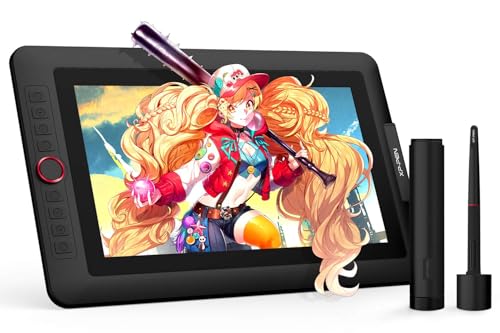
- 13.3-inch fully laminated FHD screen
- Red dial and eight customizable shortcut keys
- 16,384-level, 60° tilt battery-free stylus
Best For: Creators wanting direct-on-screen drawing in a compact setup
Best Simple Starter Tablet

- Compact 6-by-3.7-inch active drawing area
- Battery-free EMR pen with 4096 pressure levels
- Four ExpressKeys plus included software access
Best For: Beginners, students, and teachers starting digital creativity
Best Premium Display
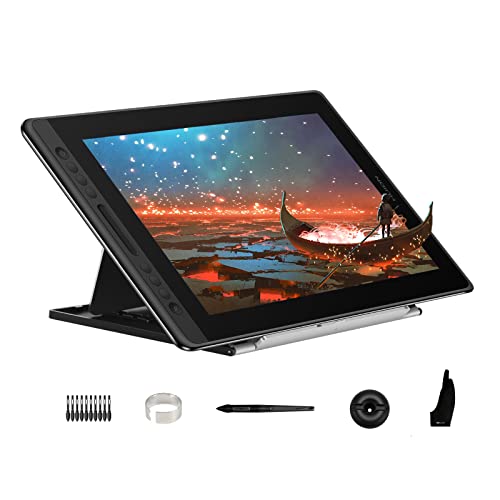
- 15.6-inch laminated anti-glare display
- 120% sRGB color gamut
- Six keys, touch bar, and adjustable stand
Best For: Artists seeking a spacious, color-rich pen display
Best Beginner Pad

- 10-by-6.25-inch drawing area
- 16,384-level battery-free stylus
- Eight customizable keys and broad compatibility
Best For: Beginners wanting a portable screenless drawing pad
Best for Comfort

- 13.3-inch laminated Canvas Glass 2.0 display
- 99% sRGB and factory calibration
- Dual dials, five keys, and 16K pen sensitivity
Best For: Creators needing a portable, color-accurate pen display
Best All-Around Pick

- Battery-free 4,096-level pressure-sensitive pen
- Bluetooth or USB-A connectivity
- Works with Windows, Mac, and Chromebook
Best For: Students and creators seeking a versatile wireless pen tablet
Best Screen Tablet
GAOMON PD1161 11.6-inch Display
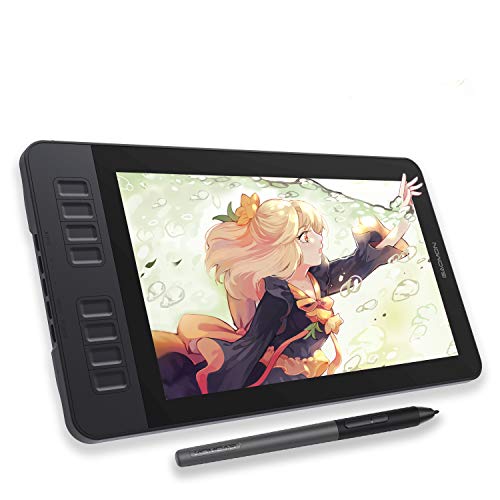
- Draw directly on an 11.6-inch Full HD screen
- 8,192 pressure levels with pen tilt
- Eight programmable shortcut keys
Best For: Beginners and artists who prefer an integrated drawing display
Best Compact Value
XPPen StarG640 6-by-4-inch Tablet

- Slim 2 mm portable design
- Battery-free 8,192-level stylus
- Compatible with Windows, Mac, and Chrome OS
Best For: Portable drawing, teaching, signatures, and remote work
Best Large Screen Workflow – XPPen Artist 22R Pro
For artists who want a spacious workspace, the XPPen Artist 22R Pro is a strong choice among drawing tablets for PC. Its 21.5-inch FHD pen display combines a large drawing area with customizable controls, accurate color reproduction, and an adjustable stand.
Best For: Graphic designers, illustrators, animators, photographers, and video editors who want a large screen and extensive shortcut controls.
Pros:
- Large 21.5-inch FHD display with 120% sRGB coverage and a 178° viewing angle.
- 20 customizable shortcut keys and two red dial wheels support efficient workflows.
- Battery-free stylus offers 8192 pressure levels, 60° tilt, and a 220 RPS report rate.
- Adjustable 16°–90° stand, VESA support, and broad Windows, Mac, Chrome OS, and Linux compatibility.
Cons:
- The large pen display needs substantial desk space.
- It must be connected to a compatible computer; it is not a standalone tablet.
The Artist 22R Pro is best suited to users who prioritize screen size, color accuracy, and hands-on controls over portability. Its extensive shortcut layout can make frequent tool changes more efficient, while the adjustable stand helps accommodate longer sessions.
Best Portable Drawing Pad – HUION Inspiroy 2 Large
The HUION Inspiroy 2 Large is a practical option among drawing tablets for PC when you want a screen-free tablet that is easy to carry. It provides a 10.5-by-6.56-inch working area, programmable controls, and compatibility with computers and select Android devices.
Best For: Students, designers, editors, teachers, and creators who need a portable tablet for drawing, editing, note-taking, or document signing.
Pros:
- PenTech 3.0 stylus provides 8192 pressure levels with precise, responsive strokes.
- Scroll wheel and three groups of eight programmable keys can be customized by application.
- Slim design takes little desk space and travels easily in a laptop bag.
- Works with Windows, macOS, Linux, and certain Android devices.
Cons:
- It has no built-in screen, so you draw while viewing your computer or mobile display.
- It is not standalone and requires a USB-C connection to a compatible device.
Choose the Inspiroy 2 Large if portability and shortcut flexibility matter more than an integrated display. Its multi-OS support and application-specific controls make it adaptable for both creative work and everyday computer tasks.
Best Compact Pen Display – XPPen Artist 13.3 Pro V2
The XPPen Artist 13.3 Pro V2 offers a compact pen-display setup for people comparing drawing tablets for PC. Its fully laminated FHD screen, red dial, shortcut keys, and tilt-sensitive battery-free stylus provide a direct drawing experience without taking up the space of a larger monitor.
Best For: Illustrators, animators, art students, hobbyists, photo editors, and creators who want a portable screen tablet.
Pros:
- 13.3-inch fully laminated FHD display helps reduce parallax.
- 88% NTSC, 91% Adobe RGB, and 123% sRGB coverage deliver a wide color gamut.
- Red dial and eight customizable shortcut keys streamline common actions.
- Battery-free stylus supports 60° tilt and 16,384 pressure levels.
Cons:
- The tablet requires a computer or laptop and is not a standalone device.
- The compact screen provides less workspace than a 21.5-inch display.
The Artist 13.3 Pro V2 is a balanced pick for users who want to draw directly on screen while keeping their setup relatively compact. Its laminated display and high pen sensitivity suit detailed work, while the dial and shortcut keys help reduce reliance on keyboard commands.
Best Simple Starter Tablet – Wacom Intuos Small
The Wacom Intuos Small is a straightforward choice among drawing tablets for PC, especially for beginners, students, and teachers. Its compact screen-free design uses a battery-free EMR pen, includes four ExpressKeys, and works with common creative software on Windows, Mac, and Chromebook.
Best For: Beginners, students, teachers, and creators who want a compact tablet for drawing, photo editing, design, or document markup.
Pros:
- Battery-free EMR pen provides a pen-on-paper feel with 4096 pressure levels.
- Four ExpressKeys offer convenient shortcut access.
- Supports Windows, Mac, and Chromebook, with compatibility across creative software.
- Software and online training are available after registering the tablet.
Cons:
- The small 6-by-3.7-inch active area may feel limiting for broad gestures.
- It has no built-in display and requires viewing the connected device’s screen.
- Connectivity is through USB-A rather than USB-C.
The Intuos Small focuses on reliable, uncomplicated input rather than an expansive feature set. It is a sensible entry point for digital art and editing, particularly when desk space, portability, or a lower-complexity setup is important.
Best Premium Display – HUION Kamvas Pro 16
For artists who want a spacious, color-rich workspace, the HUION Kamvas Pro 16 is a strong choice among drawing tablets for PC. Its 15.6-inch fully laminated display, anti-glare glass, and included adjustable stand create a comfortable setup for detailed drawing, painting, and design work.
Best For: Digital artists who prioritize a large screen, vivid color, and customizable workflow controls.
Pros:
- 15.6-inch full-HD, fully laminated display with anti-glare glass and a lightly textured drawing surface.
- 120% sRGB color gamut, 92% AdobeRGB coverage, and a 1000:1 contrast ratio support vibrant, detailed visuals.
- Six programmable shortcut keys, a touch bar, and a battery-free pen with 8192 pressure levels and 60° tilt support.
- Included ST200 stand adjusts from 20° to 60° for more comfortable positioning.
Cons:
- It is a pen display rather than a standalone tablet, so it must connect to a computer or laptop.
- The larger 15.6-inch format may be less convenient for highly portable setups.
The Kamvas Pro 16 is especially appealing when display quality and workspace size matter more than minimal portability. Its broad software and operating-system compatibility also makes it a flexible option for established creative workflows.
Best Beginner Pad – XPPen Deco 01 V3
The XPPen Deco 01 V3 is a practical screenless option for beginners shopping for drawing tablets for PC. Its 10-by-6.25-inch work area, battery-free stylus, customizable keys, and lightweight design provide a straightforward way to start drawing, note-taking, or editing.
Best For: Beginners and casual creators who want a portable, easy-to-use drawing pad with broad compatibility.
Pros:
- Battery-free stylus offers 16,384 pressure levels and up to 60° tilt support for smoother lines and shading.
- Large 10-by-6.25-inch drawing area with eight customizable shortcut keys for right- or left-handed users.
- Supports Windows, macOS, Linux, Chrome OS, and Android 10 or later.
- USB-C connectivity, included adapters, and an 8 mm-thin body simplify setup and portability.
Cons:
- The screenless design requires you to look at the connected computer or device while drawing.
- Some newer operating-system features may require updating Windows to version 11 or macOS to version 12.
With its generous active area and beginner-friendly controls, the Deco 01 V3 is a sensible starting point for learning digital art. It is also a convenient travel option for users who do not need an integrated display.
Best for Comfort – HUION Kamvas 13 Gen 3
The HUION Kamvas 13 Gen 3 combines a compact pen display with advanced pen performance and dedicated workflow controls. For drawing tablets for PC, it stands out with Canvas Glass 2.0, accurate color, a dual-dial interface, and compatibility with computers plus select Android devices.
Best For: Creators who want a portable display tablet with strong color accuracy and efficient shortcut controls.
Pros:
- 13.3-inch fully laminated display uses anti-sparkle Canvas Glass 2.0 to reduce glare and improve drawing accuracy.
- 99% sRGB coverage, Rec.709 support, 16.7 million colors, and factory calibration support consistent visuals.
- PenTech 4.0 stylus provides 16,384 pressure levels, 2g initial activation force, 60° tilt support, and three side buttons.
- Five programmable keys, dual dials, an adjustable ST300 stand, and single-cable USB-C connectivity streamline creative work.
Cons:
- It is not standalone and must connect to a compatible computer or device.
- Full-featured USB-C single-cable use requires a compatible cable, sold separately.
The Kamvas 13 Gen 3 is a well-rounded pick for artists who want display-based drawing without the footprint of a larger model. Its calibrated color and dual-dial controls make it particularly useful for illustration, animation, and design workflows.
Best All-Around Pick – Wacom Intuos Medium
The Wacom Intuos Medium is a versatile choice among drawing tablets for pc, offering a generous active area, wireless Bluetooth connectivity, and a battery-free pen for drawing, photo editing, design work, and more. Its four ExpressKeys can help streamline common shortcuts.
Best For: Students, teachers, and creators who want a dependable medium-size tablet that works wirelessly or by USB.
Pros:
- Battery-free EMR pen with 4,096 pressure levels.
- Bluetooth and USB-A connectivity provide flexible setup options.
- Works with Windows, Mac, and Chromebook systems and a wide range of software.
- Includes access to creative software and Wacom online training after registration.
Cons:
- The tablet has no built-in display, so you draw while viewing your computer screen.
- Only four ExpressKeys are provided for shortcuts.
With its established brand, comfortable medium active area, and wireless option, the Intuos is a practical general-purpose pick for PC-based creative work and digital note markup.
Best Screen Tablet – GAOMON PD1161 11.6-inch Display
The GAOMON PD1161 stands out among drawing tablets for pc because it lets you sketch, draw, and paint directly on an 11.6-inch Full HD IPS screen. Its matte surface helps reduce glare, while the included battery-free stylus supports pressure and tilt control.
Best For: Beginners and artists who prefer drawing directly on a screen and need customizable shortcut controls.
Pros:
- 11.6-inch Full HD display with 72% NTSC and 100% sRGB color coverage.
- Battery-free stylus with 8,192 pressure levels and tilt function.
- Eight programmable tablet keys plus two programmable pen buttons.
- Includes a matte film, replacement nibs, glove, pen holder, and one-year warranty.
Cons:
- Not standalone; it must connect to a Windows or Mac computer.
- Requires available HDMI and USB ports, and may need the power adapter.
- The screen size is more compact than a full-size desktop display.
The PD1161 is a compelling option if direct-on-screen drawing matters most, but shoppers should confirm their computer has compatible HDMI and USB connections before buying.
Best Compact Value – XPPen StarG640 6-by-4-inch Tablet
The XPPen StarG640 is a slim, portable option for drawing tablets for pc, with a 6-by-4-inch active area and a battery-free stylus. It is suited to drawing and painting, but also works well for signatures, online teaching, remote work, and handwritten notes.
Best For: Beginners, students, teachers, and mobile users who want a lightweight tablet for creative and productivity tasks.
Pros:
- Battery-free stylus with 8,192 pressure levels.
- Thin 2 mm design is easy to carry.
- Supports Windows, Mac, and Chrome OS devices.
- Useful for drawing, e-signatures, online education, remote work, and Office apps.
Cons:
- USB wired connectivity only.
- Its 6-by-4-inch active area is smaller than medium-format tablets.
- It has no built-in screen, so artwork appears on the connected device.
The StarG640 prioritizes portability and straightforward USB operation, making it a practical low-profile choice for basic digital art, teaching, signatures, and everyday computer input.
How We Picked the Best Drawing Tablets for PC
We evaluated these Drawing Tablets for PC based on the features that most affect everyday use: active drawing area, display size and resolution, pen pressure sensitivity, shortcut controls, connection options, compatibility, portability, and overall value. We also considered whether each model is better suited to beginners, students, hobbyists, or professional creators.
Screen tablets generally offer a more direct drawing experience, while standard pen tablets can be less expensive, lighter, and easier to position alongside a monitor. Brand software support and included accessories also matter because they affect setup time and long-term usability.
Quick Comparison
| Tablet type | Best for | Main advantage |
|---|---|---|
| Large screen tablet | Illustrators and studio users | Spacious workspace and direct on-screen drawing |
| Compact screen tablet | Students and mobile creators | Smaller footprint and easier transport |
| Medium pen tablet | Artists and editors | Good balance of control, comfort, and price |
| Small pen tablet | Beginners and casual users | Affordable, simple, and desk-friendly |
Key Buying Factors for Drawing Tablets for PC
Screen or No Screen
A display tablet lets you draw directly on the image, which feels intuitive for sketching and painting. A screenless tablet requires hand-eye coordination with your monitor but usually costs less and leaves your artwork unobstructed by your hand.
Size, Resolution, and Color
Larger active areas provide more room for broad strokes and detailed work, but they require more desk space. For display models, look for a resolution and color gamut that suit your software and workflow. Full-laminated screens can reduce the visual gap between the pen tip and cursor.
Pen Performance and Controls
Battery-free styluses reduce maintenance and recharging. High pressure sensitivity, tilt support, and low tracking lag are useful for natural line variation. ExpressKeys, dials, and touch bars can speed up zooming, brush changes, undoing, and rotating the canvas.
Compatibility and Connectivity
Confirm support for your Windows or macOS version and the creative applications you use. Check whether the tablet needs HDMI, USB, or a separate power connection. Bluetooth can reduce cable clutter, while wired models often provide a straightforward and dependable setup.
Who Should Buy Which Drawing Tablets for PC?
- Beginners: Choose a compact Wacom, XPPen, or similar pen tablet for an affordable introduction to digital art.
- Students and hobbyists: A medium-size screenless tablet or compact display model offers useful control without taking over a desk.
- Illustrators and animators: Look for a larger display, accurate color, tilt support, and customizable shortcut controls.
- Photo editors and designers: A medium pen tablet with programmable keys can provide precise selections and efficient navigation.
- Professionals: Prioritize display quality, workspace size, driver stability, and the controls that match your established workflow.