The best drawing tablet can make digital art, photo editing, animation, and handwritten notes feel far more natural. The right choice depends on whether you want a built-in screen, a compact tablet for a laptop, or a standalone device that works without a computer.
We’ve selected 10 drawing tablets across several budgets and workflows, including Wacom, HUION, XPPen, and portable options. Use the guide below to compare features and find the best fit for your setup.
Best 10 Drawing Tablets Picks for 2026
Best Screened Workflow

- 13.3-inch laminated display with Canvas Glass 2.0
- 16,384-pressure-level pen and 99% sRGB coverage
- Dual dials, shortcut keys, and included adjustable stand
Best For: Artists who want direct on-screen drawing with accurate color
Best Professional Pen Tablet

- Customizable Pro Pen 3 with 8,192 pressure levels
- Ten ExpressKeys plus two mechanical dials
- USB-C or Bluetooth connectivity for Mac and PC
Best For: Professional creative work on a separate monitor
Best Shortcut-Friendly Value

- 10-by-6.25-inch working area in a slim design
- Battery-free, tilt-supporting pen with 8,192 pressure levels
- 12 press keys and 16 programmable soft keys
Best For: Beginners and hobbyists wanting a spacious control surface
Best Colorful Pen Display
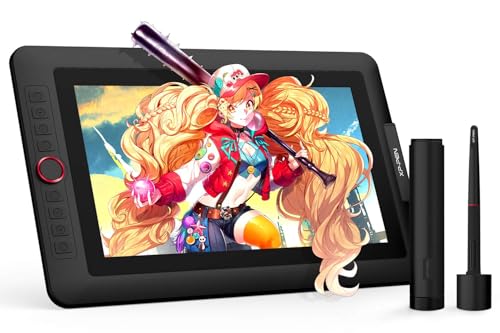
- Fully laminated 13.3-inch FHD display with wide color gamut
- 16,384-pressure-level battery-free stylus with tilt support
- Red dial and eight customizable shortcut keys
Best For: Screen-based drawing with vivid color and direct controls
Best Wireless Pick

- Bluetooth or USB-A connectivity
- Battery-free 4,096-level pen
- 8.50 x 5.31-inch active area
Best For: Creators seeking a flexible medium-sized tablet
Best Screen Tablet
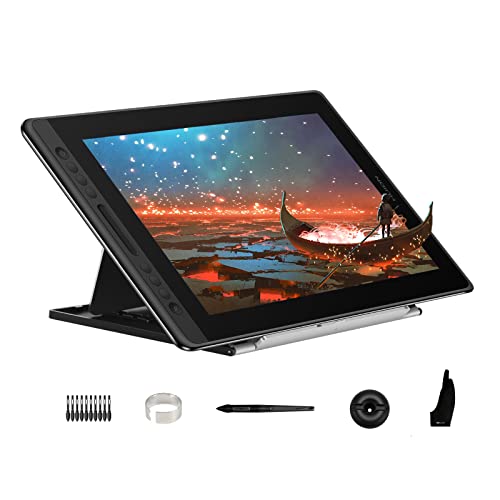
- 15.6-inch full-laminated display
- 120% sRGB color gamut
- 8,192-level pen with tilt support
Best For: Artists who want to draw directly on a display
Best Compact Starter

- Lightweight 8.1-ounce design
- Battery-free 4,096-level pen
- Four customizable ExpressKeys
Best For: Beginners and students with limited desk space
Best Standalone Pick

- Standalone 10-inch drawing tablet
- 4096-level pen with laminated display
- Tutorials and creative apps included
Best For: Beginners and students who want an all-in-one drawing tablet
Best Customizable Workflow

- Six programmable shortcut keys
- Battery-free 8192-level pressure pen
- Compatible with Mac, Windows, Linux, and Android
Best For: Portable computer-connected creative and productivity work
Best Slim Budget Option

- Slim 2 mm portable design
- Battery-free stylus for uninterrupted use
- Supports Windows, Mac, and Chromebook
Best For: Students, teachers, and beginners needing simple USB pen input
Best Screened Workflow – HUION Kamvas 13 (Gen 3)
The HUION Kamvas 13 (Gen 3) is a strong choice among drawing tablets for artists who want to draw directly on a color-accurate screen. Its laminated 13.3-inch display, Canvas Glass 2.0, dual dials, and included stand support a comfortable, focused workflow.
Best For: Designers, illustrators, animators, and artists who already have a compatible computer or laptop.
Pros:
- Fully laminated 13.3-inch display with Canvas Glass 2.0 for reduced glare and improved accuracy.
- Strong color performance with 99% sRGB coverage, 16.7 million colors, and factory calibration.
- PenTech 4.0 stylus offers 16,384 pressure levels, tilt support, and three customizable pen buttons.
- Five shortcut keys, dual dial buttons, and an adjustable ST300 stand streamline setup.
Cons:
- It is a pen display, not a standalone tablet, and must connect to a computer or laptop.
- A full-featured USB-C cable is sold separately.
The Kamvas 13 (Gen 3) is particularly appealing if accurate on-screen drawing matters more than portability. Check your computer, Android, or Linux connection requirements before buying.
Best Professional Pen Tablet – Wacom Intuos Pro Medium
The Wacom Intuos Pro Medium is a professional graphics tablet designed for precise computer-based work without an integrated display. It combines the customizable Pro Pen 3 with wireless connectivity, ExpressKeys, and mechanical dials for efficient creative shortcuts.
Best For: Animators, designers, photo and video professionals, and 3D artists using a Mac or PC.
Pros:
- Pro Pen 3 provides 8,192 pressure levels, tilt support, and lag-free tracking.
- Ten customizable ExpressKeys and two mechanical dials keep frequently used controls close at hand.
- Bluetooth enables wireless use, while USB-C provides a wired connection option.
- Medium format offers an 8.7-by-5.8-inch active area in a relatively compact body.
Cons:
- There is no built-in screen, so you draw while viewing your computer monitor.
- Compatibility is listed for Windows 10 or later and macOS 13 or later.
Choose the Intuos Pro Medium if shortcut access, pen customization, and wireless flexibility are more important than drawing directly on a display. Its professional feature set is best matched with a Mac or PC creative workstation.
Best Shortcut-Friendly Value – HUION Inspiroy H1060P
The HUION Inspiroy H1060P is a practical graphics tablet for drawing, painting, and writing on a computer or compatible Android device. Its large 10-by-6.25-inch working area, battery-free stylus, and extensive shortcut controls make it approachable for beginners while remaining useful for hobbyists and artists.
Best For: Beginners, amateur artists, and users who want many programmable controls at a straightforward size.
Pros:
- Large 10-by-6.25-inch working area in a slim 10mm design.
- Battery-free stylus offers 8,192 pressure levels and up to 60 degrees of tilt support.
- Twelve programmable press keys and 16 programmable soft keys provide extensive shortcut control.
- Supports Windows, macOS, Android, Linux, and major drawing software.
Cons:
- It has no built-in display, so artwork appears on the connected device.
- iPhone and iPad are not currently supported, and Android compatibility has device-specific limitations.
- Ubuntu use requires the Xorg display server; Wayland is not supported.
The H1060P is a sensible pick when workspace and shortcut keys matter more than a premium display. Confirm your operating system and mobile connection before ordering, especially for Linux or Android use.
Best Colorful Pen Display – XPPen Artist 13.3 Pro V2
The XPPen Artist 13.3 Pro V2 brings direct drawing to a fully laminated 13.3-inch FHD display. Its high-gamut color, red dial, customizable keys, and battery-free tilt-supporting stylus make it one of the more workflow-focused drawing tablets for computer-based art.
Best For: Concept artists, animators, students, photo editors, and hobbyists who want a screen-based drawing setup.
Pros:
- Fully laminated display is designed to reduce parallax while drawing.
- 88% NTSC coverage, equivalent to at least 123% sRGB according to the supplied notes, delivers a wide color range.
- Red dial and eight customizable shortcut keys support zooming, brush adjustments, and canvas navigation.
- Battery-free stylus offers 16,384 pressure levels, 60-degree tilt support, and low initial activation force.
Cons:
- The pen display must connect to a computer or laptop; it is not standalone.
- Setup uses the included 3-in-1 cable unless using a supported full-featured USB-C connection.
- Compatibility varies by operating system and connected device.
The Artist 13.3 Pro V2 is a compelling option for users who prioritize vivid color and direct on-screen control. Its included stand and pen accessories also make it suitable for a ready-to-use desktop art station.
Best Wireless Pick – Wacom Intuos Medium
For creators who want flexible drawing tablets without giving up a familiar pen-on-paper feel, the Wacom Intuos Medium combines a generous active area with Bluetooth and USB-A connectivity. Its battery-free pen, four ExpressKeys, and compatibility with Mac, Windows, and Chromebook make it a practical choice for drawing, photo editing, design, and document markup.
Best For: Students, teachers, and creators who want a medium-sized wireless tablet for varied creative work.
Pros:
- Wireless Bluetooth or wired USB-A connectivity.
- Battery-free pen with 4,096 pressure levels.
- 8.50 x 5.31-inch active area and four shortcut keys.
- Software and online training access included after registration.
Cons:
- It does not include a built-in display, so you draw while looking at a connected computer screen.
- Bluetooth functionality requires a compatible computer.
The Intuos Medium is a well-rounded option when portability and wireless convenience matter. Choose it over the smaller model if you prefer more room for broader strokes and detailed work.
Best Screen Tablet – HUION Kamvas Pro 16
The HUION Kamvas Pro 16 stands out among drawing tablets by letting you work directly on its 15.6-inch full-laminated display. Its 120% sRGB color gamut, anti-glare glass, programmable controls, and included adjustable stand support detailed illustration, painting, and design work.
Best For: Digital artists who prefer drawing directly on a large, color-rich screen while connected to a computer.
Pros:
- 15.6-inch 1920 x 1080 full-laminated display with anti-glare glass.
- 120% sRGB color gamut and 1,000:1 contrast ratio.
- Battery-free pen with 8,192 pressure levels and 60-degree tilt recognition.
- Six ExpressKeys, touch bar, and adjustable 20- to 60-degree stand included.
Cons:
- It is not standalone and must connect to a computer or laptop.
- USB connectivity and the included cables may be less convenient than wireless operation.
With its integrated display and generous control layout, the Kamvas Pro 16 is suited to artists who want a more direct drawing experience. Its larger size and three-pound weight make it better for a dedicated workspace than highly mobile use.
Best Compact Starter – Wacom Intuos Small
The Wacom Intuos Small is a compact wired option for shoppers comparing drawing tablets for digital art, photo editing, and design. It uses a battery-free pen with 4,096 pressure levels, includes four ExpressKeys, and works with Windows, macOS, and compatible Chromebook setups.
Best For: Beginners, students, and creators who want a lightweight tablet for everyday digital drawing and editing.
Pros:
- Compact 8.1-ounce design with a 6 x 3.7-inch active area.
- Battery-free pen with 4,096 pressure levels.
- Four ExpressKeys for commonly used shortcuts.
- Software and online training access included after registration.
Cons:
- Its smaller active area provides less room than the Medium model.
- It uses wired USB-A connectivity rather than Bluetooth.
- It has no built-in screen.
The Intuos Small keeps the essentials while minimizing desk space and weight. It is a sensible entry point for portable, screenless drawing, though artists who use broad gestures may prefer a larger active area.
Best Standalone Pick – PicassoTab A10
The PicassoTab A10 is a drawing tablet for people who want to create without connecting to a computer. Its 10-inch laminated display, included active pen, Android 14 operating system, and preloaded creative apps make it a practical option for beginners, students, and portable sketching.
Best For: Beginners and students who want an all-in-one drawing tablet with built-in tutorials and no computer requirement.
Pros:
- Standalone design runs drawing apps directly on the tablet.
- Paper-like laminated 10-inch display helps reduce glare and parallax.
- 4096-level pressure-sensitive pen and six included bonus items add value.
- Includes beginner-focused tutorials, drawing guides, and creative apps.
Cons:
- At 1.5 kg, it is less lightweight than compact computer-connected tablets.
- Its Android-based workflow may not suit users who specifically need desktop software.
The PicassoTab A10 stands out when convenience and independence matter more than a traditional desktop setup. Expandable storage, built-in cameras, and multitasking support make it useful beyond drawing, while the guided lessons can help new artists get started.
Best Customizable Workflow – HUION Inspiroy H640P
The HUION Inspiroy H640P is a compact computer-connected drawing tablet with a 6-by-4-inch active area and a battery-free stylus. Six customizable press keys and broad compatibility make it a flexible choice for digital art, photo editing, note-taking, and everyday cursor control.
Best For: Artists, students, and remote workers who want programmable shortcuts in a portable pen tablet.
Pros:
- Six customizable keys can be assigned to frequently used commands.
- Battery-free pen provides 8192 pressure levels without charging.
- Works with Mac, Windows, Linux, and Android devices.
- Compact, lightweight design is easy to carry between locations.
Cons:
- It requires a compatible computer or Android device and does not operate as a standalone display tablet.
- It does not support iPhone or iPad.
The H640P is a strong fit for buyers who prioritize control and portability. Its programmable keys can reduce repeated menu navigation, while the pressure-sensitive pen supports detailed drawing, editing, signatures, and notes.
Best Slim Budget Option – XP-Pen StarG640
The XP-Pen StarG640 is a slim 6-by-4-inch drawing tablet designed for computer-based drawing, writing, teaching, and remote work. Its battery-free stylus and support for Windows, Mac, and Chromebook devices make it a straightforward replacement for a mouse.
Best For: Students, teachers, and beginners seeking a thin, portable drawing tablet for creative and online-work tasks.
Pros:
- Battery-free stylus supports uninterrupted drawing without charging.
- Works with Windows, Mac, and Chrome OS devices.
- Only 2 mm thick for easy transport.
- Supports drawing, signatures, online teaching, photo editing, and note-taking.
Cons:
- It connects by USB and is not a standalone tablet with its own display.
- The supplied notes do not list customizable shortcut keys.
The StarG640 keeps the setup simple and portable. It is especially practical for users who need precise pen input for online lessons, documents, diagrams, or casual digital art without carrying a larger tablet.
How We Picked the Best Drawing Tablets
We compared these Drawing Tablets by looking at the features that most affect everyday use: active drawing area, pen performance, display quality, shortcut controls, connectivity, portability, compatibility, and overall value. The selection includes both pen displays, which show your artwork directly on the tablet, and screenless graphics tablets that connect to a computer or mobile device.
We also considered who each model suits best, from first-time digital artists and students to illustrators who need a larger workspace or more advanced controls. Product specifications can vary by retailer and region, so check the included accessories and operating-system support before buying.
Quick Comparison of Drawing Tablets
| Type | Best For | Main Advantage |
|---|---|---|
| Screen display | Illustration and design | Draw directly on the image |
| Screenless graphics tablet | Beginners, editing, and desk setups | Lower cost and easy computer connection |
| Standalone tablet | Portable sketching | Works without a separate computer |
Key Buying Factors for Drawing Tablets
Screen or No Screen?
A pen display such as a Kamvas or Artist model offers a more direct, paper-like workflow because the cursor appears beneath the stylus. It is often preferable for illustration, painting, and detailed design, but it costs more and usually needs a computer. A screenless tablet such as the Wacom Intuos, HUION Inspiroy, or XPPen StarG640 is more affordable, lighter, and less complicated to position on a desk.
Size and Active Area
Small tablets are convenient for travel and limited desk space, while medium and large models provide more room for broad strokes and detailed work. A larger active area can be especially helpful when using a high-resolution monitor, although it also increases the tablet’s footprint.
Pen Performance and Controls
Look for a battery-free stylus, comfortable grip, high pressure sensitivity, and accurate tilt support when available. Shortcut keys, dials, and touch bars can speed up zooming, brush-size changes, undo commands, and other repetitive tasks. They are useful, but not essential if you already rely on keyboard shortcuts.
Display Quality and Connectivity
For pen displays, check resolution, color coverage, lamination, viewing angles, and parallax. A laminated screen can reduce the visible gap between the pen tip and cursor. Also confirm whether the tablet uses USB-C, a multi-cable connection, Bluetooth, or a dedicated power adapter, and verify compatibility with your computer and creative software.
Who Should Buy Which Drawing Tablets?
For Beginners and Students
A small or medium screenless tablet is usually the best starting point. It keeps the cost down, works well with common art and editing software, and leaves room to learn before investing in a display model.
For Illustrators and Digital Painters
Choose a pen display if drawing directly on the artwork matters most. Models with larger screens, full lamination, stronger color coverage, and customizable controls are better suited to longer creative sessions.
For Professionals and Frequent Creators
A medium Wacom or advanced display tablet is worth considering when reliable pen tracking, refined software support, ergonomic controls, and a spacious working area are priorities.
For Travel and Computer-Free Sketching
A standalone tablet is the most convenient option when you want to sketch away from a desk. Confirm its operating system, battery expectations, file-transfer options, and supported apps before purchase.